Day2 : Technical Problem Resolved!
Problem
One of the major problems when I got to the centre was the prospect of not being able to use my laptop for any multimedia presentations such as using interactive websites set up for the teaching of English as a foreign language. In the playing of any DVDs, the laptop is a better option than the TV because the projector has a larger image than the centre’s 29” television set.
However, the CSTC isn’t equipped like our classroom in NP. It doesn’t have an integrated sound system for us to plug in our computers. This means that the laptop won’t be an effective tool since the students can’t hear the sound output from its little speakers.
Solution:
The short answer is that I found a way to output the sound to the CSTC’s 29” stereo TV from my laptop’s headphone jack. This way, the TV set becomes a giant speaker for my computer! :c) (back in showbiz!)
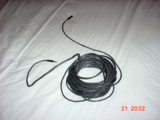
I was lucky that I brought along the audio cables from my radio days. Here is the spool of extension cables (Cable 1) that are 10m long:
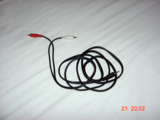
This is a mini-plug to RCA adapter wire (Cable 2). This is the cable that I use to connect to the TV’s stereo input.
Hi Eve, if you wish to use your computer, you will need to follow these steps:
Step1: Plug in the Cable 1 into the headphone jack of your laptop. The headphone jack is the one that is coded GREEN.
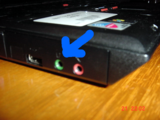
Step2: Connect Cable 2 to Cable 1.
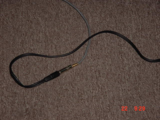
Step3: Connect the other end of Cable 2 (the ones coded Red and White) to the Video2/3’s Audio Inputs (the Red and White ones) at the back of the TV.
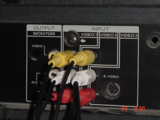
Step4: Switch on both the TV and the DVD player.

Step5: Select the Video2 channel on the TV set. Leave the DVD player on and now the TV set becomes the world’s biggest computer speaker! :c)
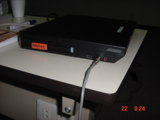
Here's how you connect your PC to the projector. The connection is at the back of your laptop:
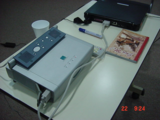
I had also briefed Jackie on how to connect the sound cable to your computer so he should be able to help you.
posted by CHONG Ching-liang at 10:27 PM


0 Comments:
Post a Comment
<< Home